
Open an Amazon S3 bucket in the Files app on iPhone
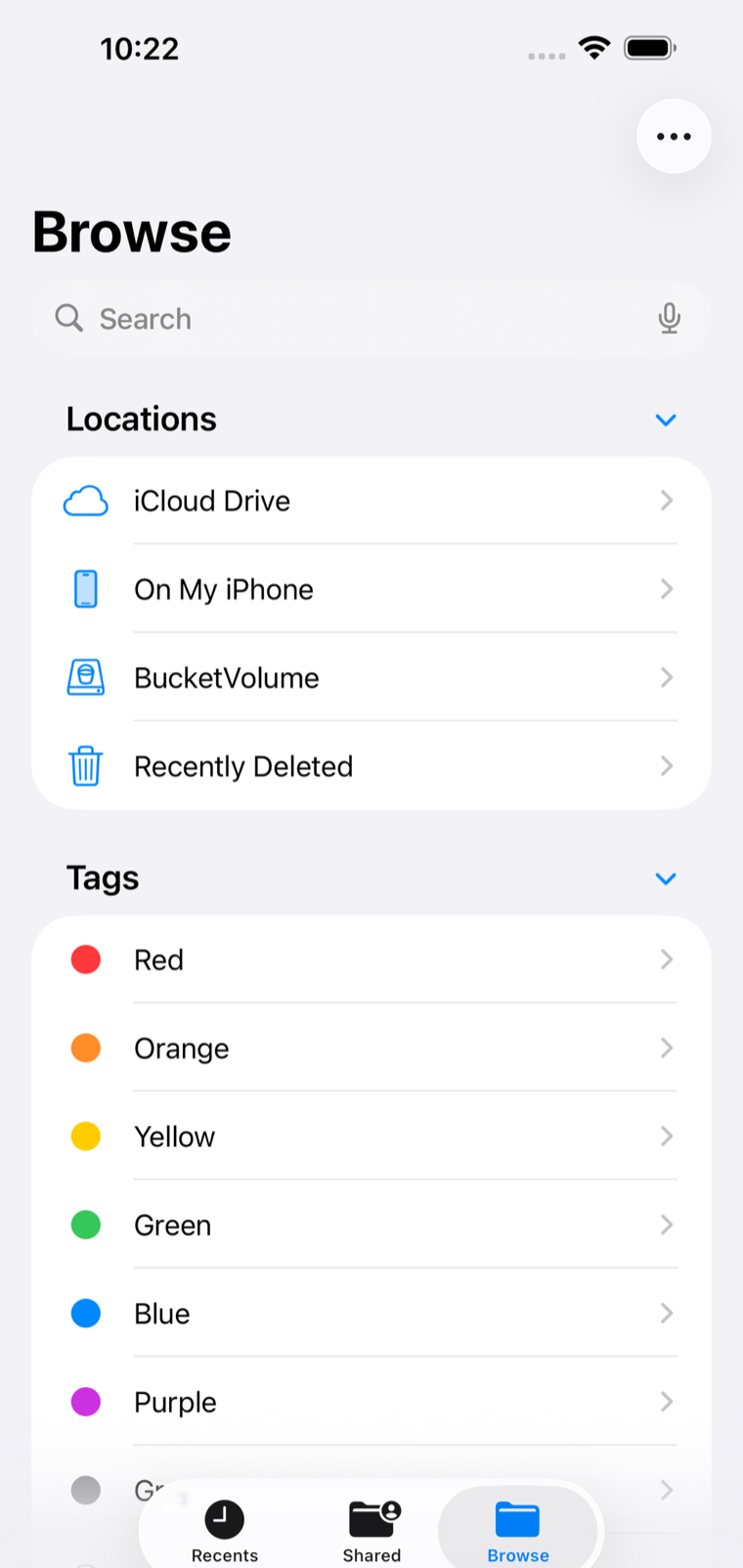
An Amazon S3 bucket can appear in the iPhone Files app under Locations. This guide sets that up with BucketVolume.
What you need
- An iPhone and BucketVolume from the App Store.
- An AWS account with an S3 bucket.
Steps
-
Create an access key in AWS
In the AWS console, open IAM and create an access key for a user who may read and write the bucket. A policy limited to that one bucket is the safer choice.
AWS shows an Access Key ID and a Secret Access Key once. Keep the page open until both are pasted into BucketVolume.
-
Connect the bucket in BucketVolume
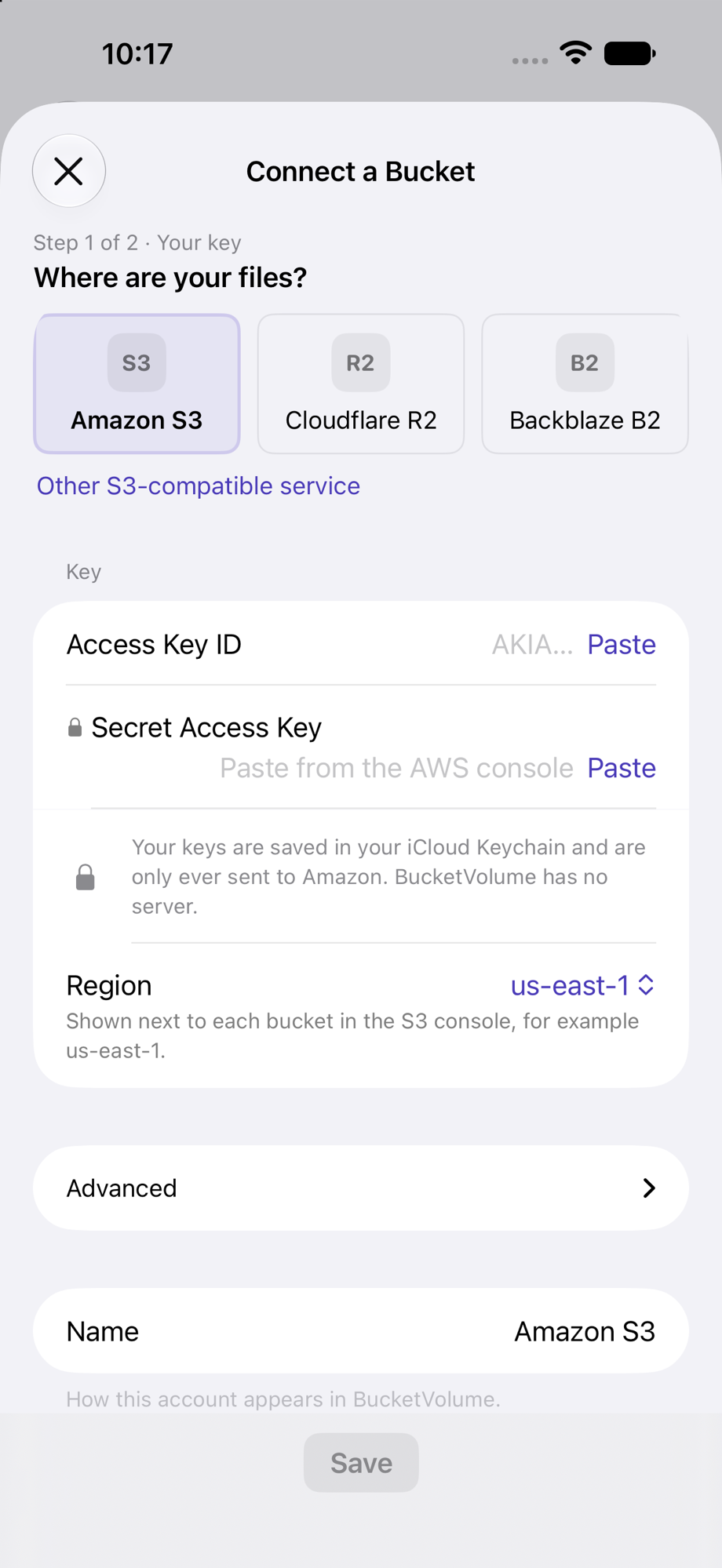
Open BucketVolume and tap Connect a Bucket. The sheet has two steps.
Step 1 asks for the key. Choose Amazon S3 from the row of providers. Paste the Access Key ID and the Secret Access Key, and tap Save. BucketVolume normally finds the bucket's region itself, so leave Region as it is.
Step 2 asks Which bucket? Pick the bucket from the list, or type its name in the Bucket field when the key cannot list buckets.
If BucketVolume already has a credential, use the + menu instead: Add Credential… opens the same two steps for a new key, and Add Bucket… adds a bucket with a key BucketVolume already has. A second credential or a second bucket needs the Pro upgrade, and BucketVolume offers Pro at that point.
-
Open the bucket in the Files app
Open the Files app. BucketVolume is under Locations, and the bucket is a folder inside it.
The first time you tap BucketVolume, iPhone asks Turn On “BucketVolume”? Tap Turn On. iPhone asks once.
Any app that opens files through the Files app can now open and save files in the bucket.
Good to know
- A file downloads when you open it. Files you mark to keep stay on the iPhone for use without a connection.
- The S3 credential syncs to your iPad and Mac through iCloud Keychain. Add the bucket on each device where you want it.
- If the bucket changes while you are editing a file, BucketVolume keeps both versions and names yours as a conflict copy.
- BucketVolume has no server. The key goes only to AWS.


BucketVolume costs $2.99 once, for iPhone, iPad and Mac together, and includes one credential and one bucket. The optional Pro upgrade, $9.99 once, raises that to 100 credentials and 1,000 buckets.
Other guides
- Mount an Amazon S3 bucket in Finder on a MacAn Amazon S3 bucket can be a folder in the Finder sidebar. This guide sets that up with BucketVolume.
- Mount a Cloudflare R2 bucket in Finder on a MacA Cloudflare R2 bucket can sit in the Finder sidebar like a drive. This guide sets that up with BucketVolume.
- Mount a Backblaze B2 bucket in Finder on a MacA Backblaze B2 bucket can appear in the Finder sidebar beside your drives. This guide sets that up with BucketVolume.
- Open a Cloudflare R2 bucket in the Files app on iPhoneA Cloudflare R2 bucket can be a folder in the iPhone Files app. This guide sets that up with BucketVolume.
- Open a Backblaze B2 bucket in the Files app on iPhoneA Backblaze B2 bucket can appear in the iPhone Files app next to iCloud Drive. This guide sets that up with BucketVolume.
- Open an Amazon S3 bucket on iPadAn Amazon S3 bucket can appear in the iPad Files app as a folder. This guide sets that up with BucketVolume.
- Open a Cloudflare R2 bucket on iPadA Cloudflare R2 bucket can sit in the sidebar of the iPad Files app. This guide sets that up with BucketVolume.
- Open a Backblaze B2 bucket on iPadA Backblaze B2 bucket can appear in the iPad Files app beside iCloud Drive. This guide sets that up with BucketVolume.